Using Microsoft Teams Context Effectively: QuickLinks per Team and Channel
A lightweight Microsoft Teams Tab App that reads the current Teams context and decides which links to display based on a static JSON configuration – no Graph, database, or backend API required.
Links to internal business applications are one of those small friction points that rarely escalate but constantly cost time in everyday work.
Almost every organization knows this: SharePoint portals, dashboards, HR resources, project wikis, ticket systems, documentation, onboarding guides, internal forms, Power BI reports, or Azure DevOps boards. Over time, this quickly turns into a small link jungle.
The problem: not every link is equally relevant for every person.
A development team needs different resources than sales. Accounting works with different systems than project management. And even within a team, individual channels may require different tools. A frontend development channel might have different relevant links than a channel for backend, DevOps, or architecture.
To find a solution for this problem, I developed a small sample that aims to answer a simple question:
Can we display QuickLinks in Microsoft Teams that automatically adapt to the current team or channel, without requiring Microsoft Graph, a database, or a custom backend API?
The result is the Teams QuickLinks App: a lightweight Microsoft Teams Tab App that reads the current Teams context and decides which links to display based on a static JSON configuration.
You can find the sample repository here:
https://github.com/rwenz02/tab-context-quicklinks
The Core Idea
The app is not meant to replace a full-fledged enterprise link platform. Rather, it demonstrates a small, understandable pattern:
Read Teams context, resolve configuration, display matching links.
When the app is opened in a specific team or channel, it recognizes the current context. It then checks whether there is a matching linkset in the configuration file for that context.
This enables scenarios such as:
- A sales team sees links to CRM, proposal documents, and sales dashboards.
- A development team sees links to Azure DevOps, technical documentation, and deployment pipelines.
- A specific channel within a team sees even more specific links, such as for enterprise sales, frontend development, or project controlling.
- When the app is opened outside a team context, for example as a personal app, general default links are displayed.
The focus is deliberately on simplicity. No user management. No backend logic. No Graph queries. No database. The app decides exclusively based on the Teams context and a JSON file which links to display.
What the Teams QuickLinks App Does
The Teams QuickLinks App displays different links depending on the current Microsoft Teams team or channel.
If a user is in a sales team, for example, sales-related links can be displayed. If there is a channel for enterprise sales within that team, a separate link list can be configured for that channel.
Similarly, a development team with various channels for frontend, backend, DevOps, or architecture is conceivable. Each of these channels could receive its own links without requiring a complex administration solution.
The app currently supports the following features:
- Display of QuickLinks based on the current team
- Display of QuickLinks based on the current channel
- Fallback to general default links
- Search function by link titles
- User-side pinning of favorite links
- Centrally pre-configured pins via JSON configuration
- Support for Fluent UI Icons
- Lightweight configuration without a backend
The user-side pin function is stored locally in the Teams client. This allows users to highlight links for themselves without requiring central storage.
Architecture: Deliberately Simple
The architecture of the app is intentionally very lean.
At its core, the application consists of a React-based Teams Tab App. On startup, it loads a JSON configuration file and reads the current Teams context via the TeamsJS SDK.
Two pieces of information from this context are particularly relevant:
- the
groupIdof the current team - the
channelIdof the current channel
Based on these values, the app checks whether there is a matching linkset in the JSON configuration.
The app requires:
- no Microsoft Graph Permissions
- no SharePoint Permissions
- no custom backend API
- no database
- no server-side user logic
This makes the sample particularly well-suited for understanding the pattern behind context-aware Teams Tabs.
The App in Action
Before we look at the configuration in more detail, here’s a quick look at the app in the Teams client.
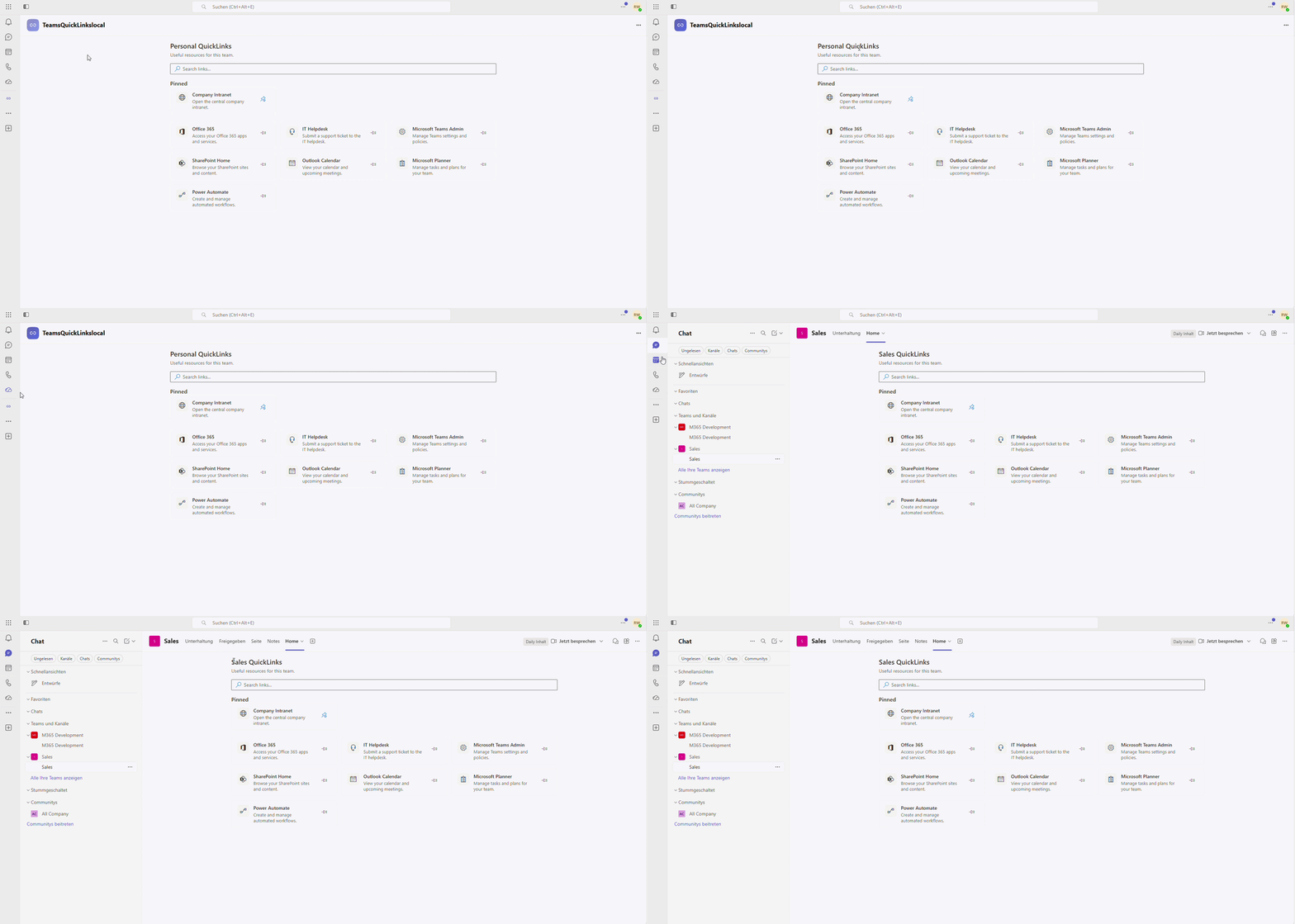
The app can be used both as a personal app and as a tab within a team or channel. Depending on the context, a different linkset is loaded. If no specific team or channel is recognized, the app falls back to the default linkset.
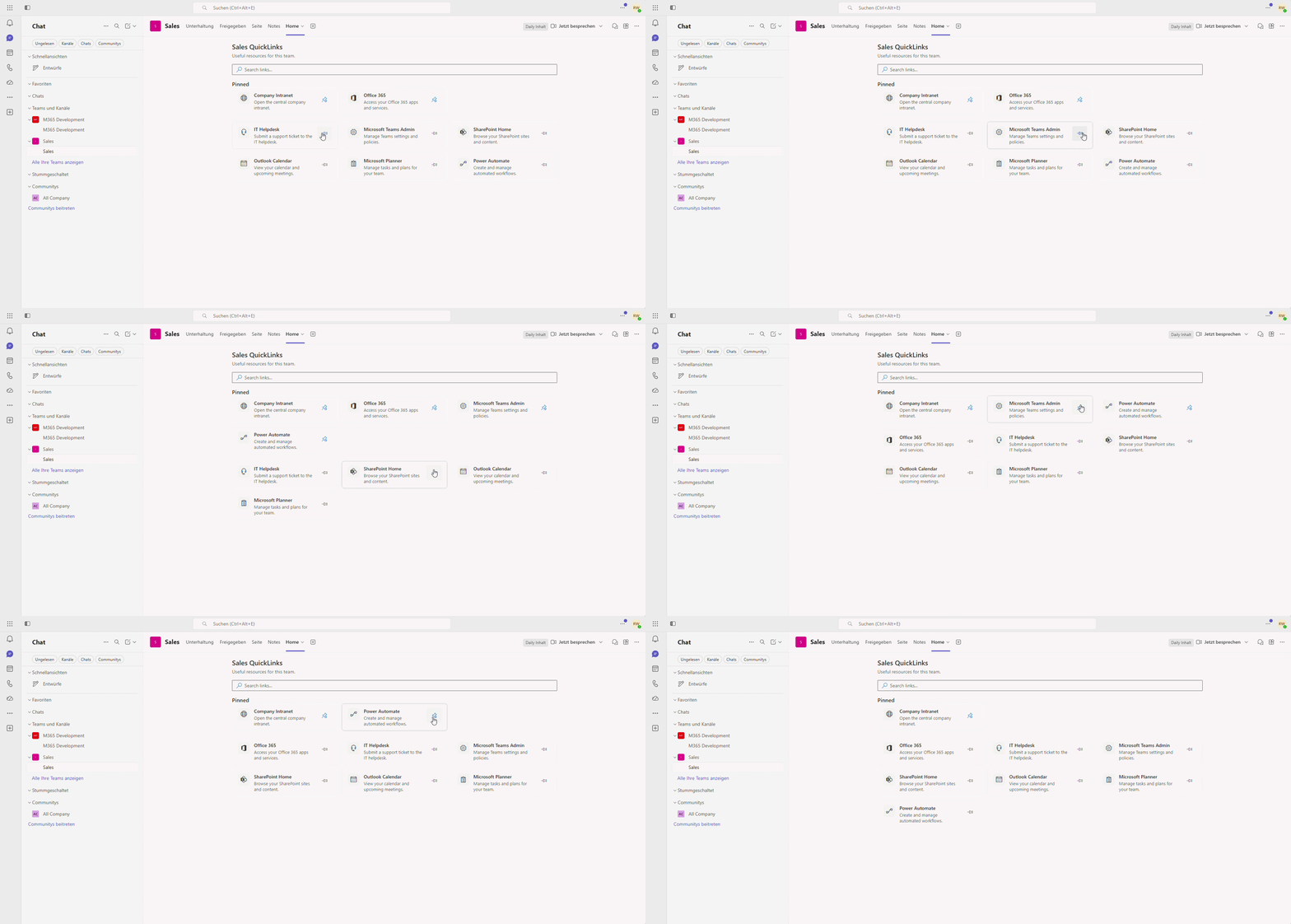
In addition to the context-based display, users can pin their own links. These pins are stored locally in the Teams client and do not change the central JSON configuration.
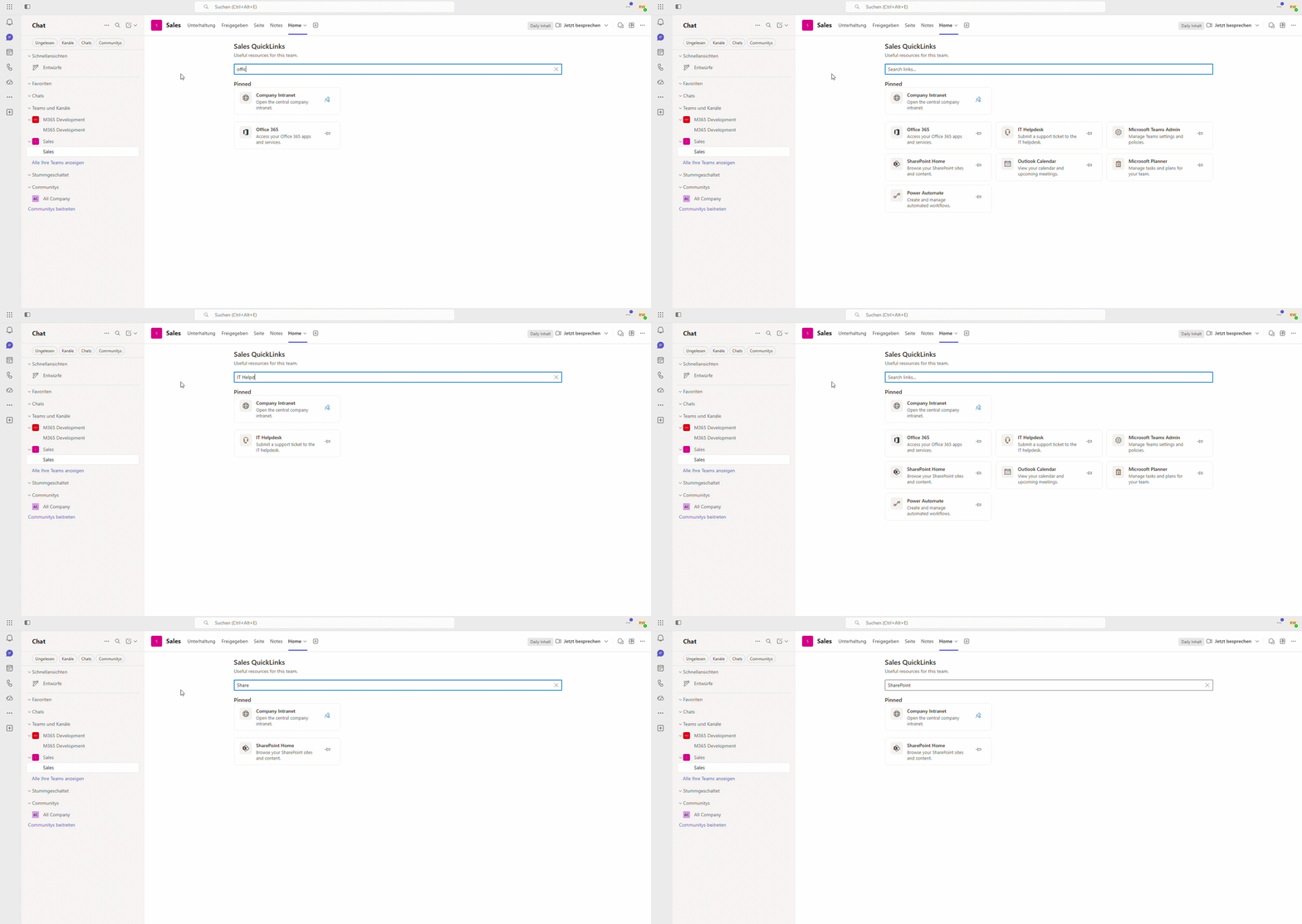
For longer link lists, there is also a simple search function. The search filters the displayed QuickLinks by link title.
Configuration via JSON
The QuickLinks are configured through a central JSON file. In the sample, this file is located at:
public/config/quicklinks.jsonThe file is loaded at runtime by the app. This means the entire logic of which links are displayed in which context is contained in a single configuration file.
The basic structure looks like this:
{
  "default": {
    "title": "Personal QuickLinks",
    "description": "Useful resources for all users.",
    "links": []
  },
  "teams": {}
}
The default section contains links that are displayed when no specific team or channel is recognized. This is relevant, for example, when the app is opened as a personal Teams app or when no custom configuration exists for the current team.
The teams section contains team- and channel-specific linksets. The Microsoft Teams groupId is used as the key.
A simple team-based linkset might look like this:
{
  "teams": {
    "00000000-0000-0000-0000-000000000002": {
      "title": "Development QuickLinks",
      "description": "Engineering tools and technical documentation.",
      "links": [
        {
          "id": "azure-devops",
          "title": "Azure DevOps",
          "description": "Open boards, repositories and pipelines.",
          "url": "https://dev.azure.com/contoso",
          "icon": "Code",
          "pinnedByDefault": true
        },
        {
          "id": "dev-docs",
          "title": "Developer Documentation",
          "description": "Browse the internal developer knowledge base.",
          "url": "https://docs.contoso.com",
          "icon": "Dictionary"
        }
      ]
    }
  }
}
Each link has at minimum the following properties:
idtitleurl
Additional optional properties can be specified:
descriptioniconpinnedByDefault
The id is particularly important because it is used internally to recognize pinned links. It should therefore be unique within the respective linkset and as stable as possible. If only the title or URL of a link changes, the id should ideally remain the same.
With pinnedByDefault: true, administrators can centrally highlight links. These links appear initially pinned for all users in the respective context.
Additionally, users can pin or unpin their own links. These user-side pins are stored locally in the Teams client.
Channel-Specific Linksets
In addition to team-based links, channel-specific links can also be defined. For this, the channels section is added within a team.
An example:
{
  "teams": {
    "00000000-0000-0000-0000-000000000001": {
      "title": "Sales QuickLinks",
      "description": "Tools and resources for the Sales team.",
      "links": [
        {
          "id": "dynamics-sales",
          "title": "Dynamics 365 Sales",
          "url": "https://contoso.crm.dynamics.com",
          "icon": "Briefcase",
          "pinnedByDefault": true
        }
      ],
      "channels": {
        "19:example-channel-id@thread.tacv2": {
          "title": "Enterprise Sales QuickLinks",
          "description": "Resources for enterprise deal management.",
          "links": [
            {
              "id": "enterprise-pricing",
              "title": "Enterprise Pricing Calculator",
              "description": "Calculate custom pricing for enterprise deals.",
              "url": "https://pricing.contoso.com",
              "icon": "Calculator",
              "pinnedByDefault": true
            }
          ]
        }
      }
    }
  }
}
The app then decides based on the current Teams context which linkset to display.
The resolution follows this priority:
- If a matching configuration exists for the current team and channel, it is used.
- If no matching channel configuration exists, but a configuration for the current team is available, the team linkset is used.
- If neither team nor channel is found, the default linkset is displayed.
Important to note: linksets are currently not merged. A channel-specific configuration replaces the team-based link list for that channel. This makes the behavior very predictable but should be considered when building the JSON file.
Where Do I Get the Required IDs?
The configuration requires the IDs of the respective team and channel.
The groupId of a team can be found through Microsoft Teams. Via Get link to team, the generated URL contains the corresponding team ID.
For channels, the respective channelId can be determined via Get link to channel. This typically has a format like:
19:example-channel-id@thread.tacv2For a sample, this approach is sufficient and deliberately transparent. In a more production-ready variant, the ID retrieval could of course be made more convenient, for example through a small admin interface.
Security and Permissions
An important point for this sample was to keep the app as lightweight as possible.
Many Microsoft 365 apps quickly require additional permissions, app registrations, Microsoft Graph scopes, or even admin consent. For this use case, that would have been overkill in my opinion.
The QuickLinks App currently requires:
- no Microsoft Graph Scopes
- no SharePoint permissions
- no custom backend API
- no server-side authentication logic
- no database
No data is read from Microsoft Graph, no user profiles are queried, and no files, lists, or Teams content is processed.
Instead, the app only uses the Teams context that is available to a Teams Tab App via the TeamsJS SDK. Through this, the app can recognize which team and channel it was opened in. The actual decision of which links to display is then made locally based on the JSON configuration.
The user-side pin function is stored in the local storage of the Teams client. This means: the information about which links a user has pinned themselves remains local to the respective client and is not centrally synchronized or stored in a database.
However, it’s also important to note the functional distinction:
The app is not a security or authorization mechanism. It only controls which links are displayed in which Teams context. It does not prevent someone from knowing or manually accessing a link.
The actual access control must still take place in the respective target system. If a link points to a SharePoint portal, a dashboard, or a specialized application, that target system itself must verify whether the person has access.
The app thus helps with visibility and orientation but does not replace authorization.
Local Debugging and Deployment with the Microsoft 365 Agents Toolkit
For local development and deployment, I used the Microsoft 365 Agents Toolkit for Visual Studio Code.
The toolkit is well-suited for Teams App samples because it supports many recurring steps directly from the development environment: local debugging, launching the app in the Teams client, provisioning required resources, and deploying the application.
For this sample, the development process is deliberately kept simple.
After cloning the repository and installing the npm dependencies, the app can be started locally via Visual Studio Code and tested directly in Microsoft Teams.
The specific steps for local debugging and deployment are documented in the repository:
https://github.com/rwenz02/tab-context-quicklinks
There you will also find the prerequisites, npm scripts, and notes on configuring the app.
Further information about the Microsoft 365 Agents Toolkit can be found in the official Microsoft documentation:
https://learn.microsoft.com/en-us/microsoftteams/platform/toolkit/agents-toolkit-fundamentals
Limitations of the App
The QuickLinks App is deliberately implemented as a lightweight sample. It is primarily intended to illustrate how the Teams context can be used to display links depending on the current team or channel.
This does not mean the app cannot be used productively. However, due to the simple architecture, there are some limitations.
Static Configuration
Links are currently loaded from a JSON file. Changes are not made through an administration interface.
When new links need to be added, existing links adjusted, or team configurations changed, the JSON file must be modified and the app redeployed.
No Central Synchronization of Pins
The user-side pin function is stored locally in the Teams client. This keeps pins simple and data-efficient.
The downside: pins are not synchronized between different devices, browsers, or Teams clients.
No Combination of Linksets
Currently, linksets are not combined with each other.
When a channel has its own configuration, it replaces the team configuration for that context. This is simple and predictable but may be too rigid in some scenarios.
An alternative approach would be to merge team links and channel links. This would be more flexible but also somewhat more complex.
No Role- or Group-Based Personalization
The app currently does not differentiate by user roles, group memberships, or Entra ID groups.
This is deliberately chosen because it would require Microsoft Graph or another data source. For this sample, the Teams context should suffice.
Visibility Is Not Authorization
The app only decides which links are displayed. It does not protect the target systems.
When a link is visible, it does not automatically mean that the person has access to the target system. Conversely, a person could also manually access a known link. Authorization checks must always take place in the target system.
Ideas for Further Development
From the current limitations, several possible extensions for more productive scenarios emerge.
Conceivable additions include:
- An administration interface for managing links
- Storage of the configuration in SharePoint, Azure Storage, or a database
- Synchronization of user-side pins via a backend
- Role- or group-based link display via Microsoft Graph
- Import and export functions for link configurations
- Validation of the JSON configuration before deployment
- Merging of team and channel linksets
- Support for multiple link categories
- Tenant-wide default links with additional team-specific extensions
This could gradually turn the sample into a more comprehensive internal link solution.
Conclusion
The Teams QuickLinks App demonstrates how a practical Microsoft Teams scenario can be implemented with relatively little infrastructure.
The actual core is not the link list itself, but the underlying pattern:
Use the Teams context to display content depending on the current team or channel.
For simple scenarios, a static JSON configuration is entirely sufficient. No Graph permissions, no database, and no backend API are needed. This keeps the app lightweight, understandable, and easily adaptable.
Of course, there are limitations. For larger productive scenarios, an administration interface, central storage, and possibly group-based logic would be sensible next steps.
As a sample, however, the app demonstrates very well how Teams Tabs can be made more context-aware without immediately building a large architecture.
Especially for internal tools, small departmental solutions, or proofs of concept, this pattern can serve as a pragmatic foundation.